
Tutorials - Gold
Esther has created a lovely gold effect tutorial for Paintshop Pro users. I've put this one together for those of us with Adobe Photoshop. It's quite a different effect, but similarly 'metallic' looking.
Achieving a metallic effect relies on strong contrast over a very narrow gradient, and you can do this with just about any colour. For gold, use yellows and browns; for silver, use greys.
Take a look at the example below. Notice that the dark and light colours are very close to one another.

Create your layer, and click the 'preserve transparency' box so that we won't fill the whole area with our gradient.
Download the gold gradient file which I've created and save it onto your computer.
Click here to download Amanda's Gold Gradient file
In your gradients options list select 'load' and find the file on your computer.
If you're using an older version of Photoshop (or if you'd like a challenge), you can create your own gradient.
Click 'Edit', then in the gradient dialogue box click 'New'.
Set up your gradient with similar settings to those below...
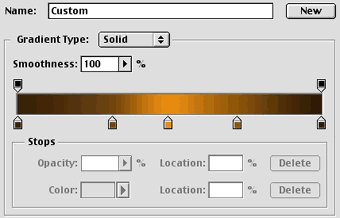
Now we have a gold gradient. Click and drag on your layer to apply the gradient as usual.
Here's an example of the gold gradient used for the crown and belt of one of my drawings...

If you'd like to see the full image you can click here to visit my gallery :-)
